
Importing pages with Comala Document Manager and SoftComply Change History Table data into the SoftComply Document Manager App
This feature allows the user to import Comala Document Management Cloud data and SoftComply Change History App for the same.
Requirements
Comala Document Management Cloud installed in the same instance.
SoftComply Change History App installed in the same instance.
Pages currently managed by a Comala workflow, containing the SoftComply Change History Macro.
Ensure you are on the latest version of the Document Manager and Change History Table apps.
Preparation
Navigate to the Space Settings -> Integrations -> SoftComply Change History Configuration. At the top, click on “Backup CHT data”. This will save all CHT and Comala data as page properties. During the import, these will moved to the Document Manager.

Note: the Comala and CHT data will be “frozen” at the moment of the backup. Any successive change will not be imported.
Wait until the process completes. In case of errors, please check if the app has edit permission to all pages.
Import
For the DM to be able to manage existing Confluence pages, these pages must be moved to the Spaces controlled by the DM. The App cannot control pages outside these spaces.
From the main view, click on the Cog in the top-Right corner:

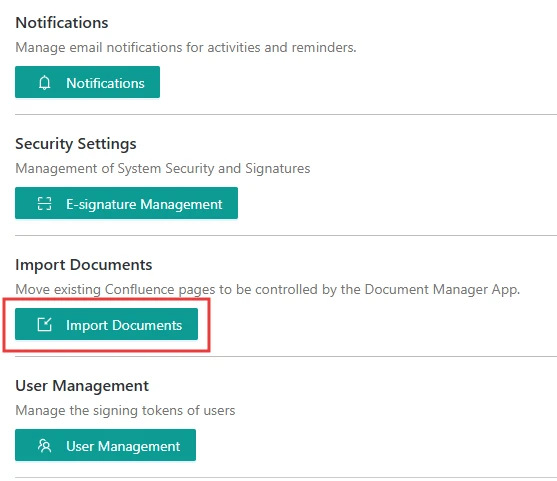
From the Settings view, select “Import Documents”
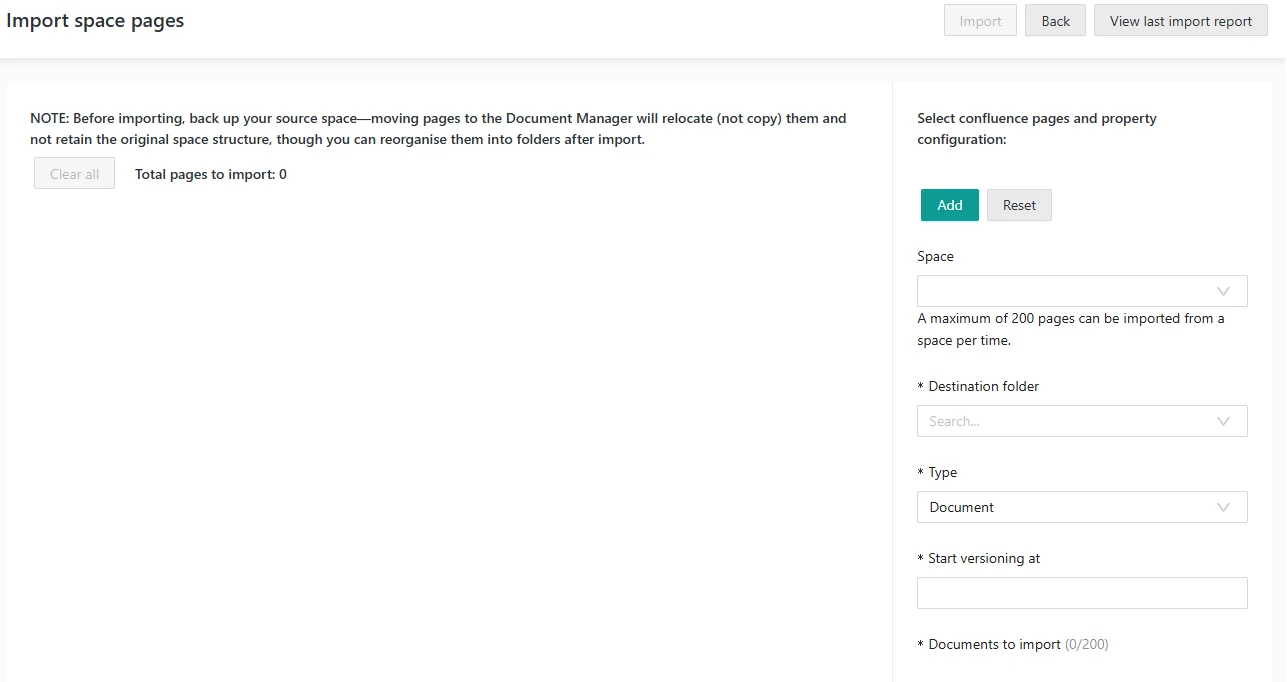
From the Import View select:
Space: the space the pages to be imported are in. Once the Space is selected, the list of pages will appear at the bottom of the right panel;
Destination folder: the folder the pages will be moved to (note: it can be modified later);
Type: the type that will be assigned to imported documents(note: it can be modified later);
Start version at: the version that will be assigned to imported documents(note: it can be modified later);
The pages to be imported (max 200 per run);
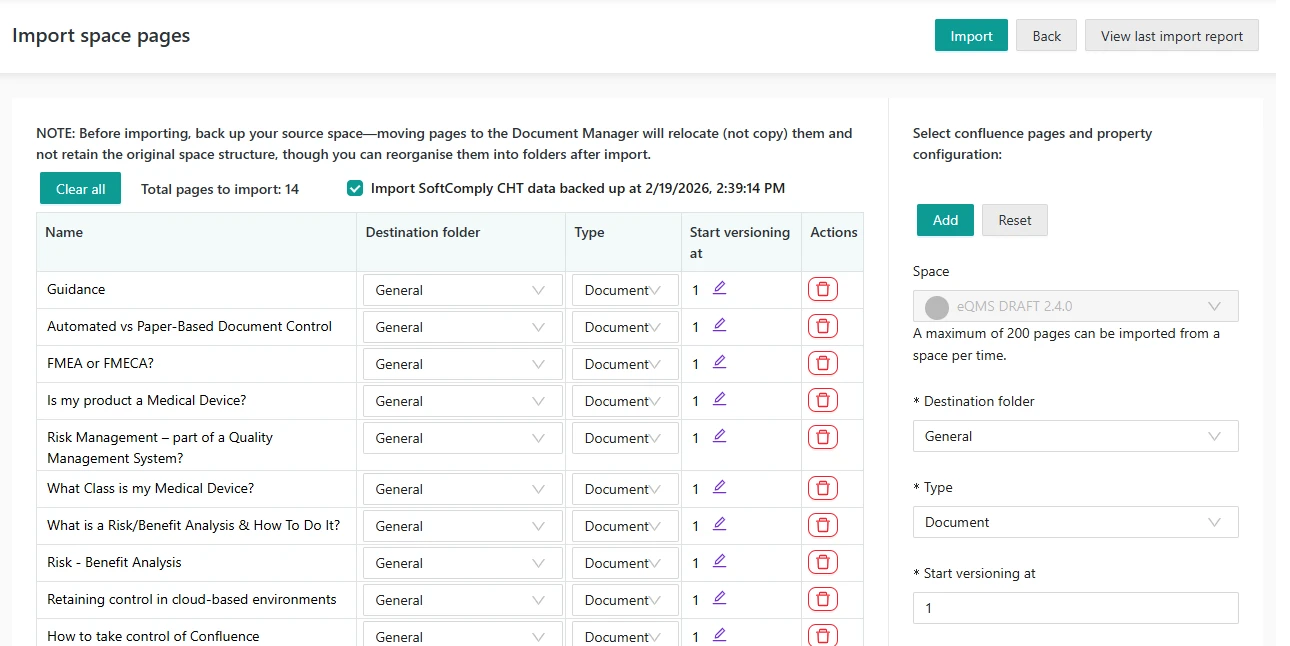
Note: ensure that the App shows that there are CHT data saved in the space, that the timestamp matches the backup action above and that the tickbox is selected.
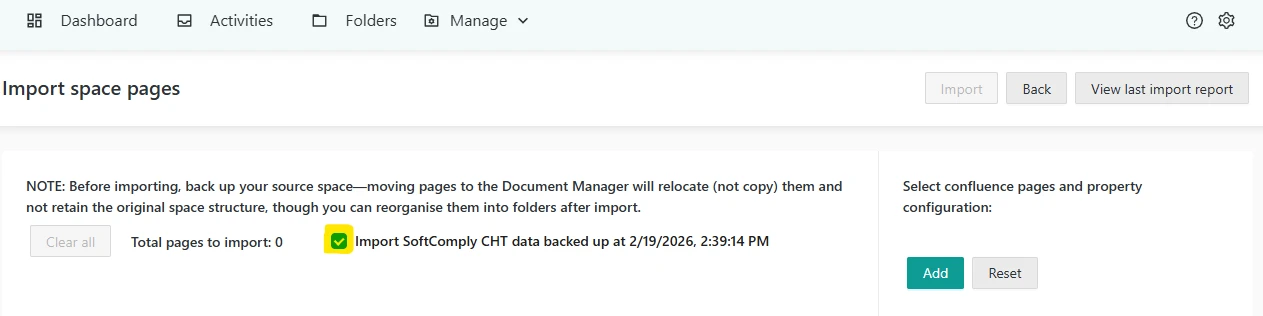
Then click on “Add”.
The list of pages will appear in the main view. From here, it is possible to modify Type, Folder and version for each document, and remove any unwanted page from the list.
Additional pages can be added repeating the same process, with a maximum of 200 per run.
Click “import” when ready.
The DM will import the pages while showing the progress bar. The time required to import pages depends on their number and content. As a rule of thumb, expect 5 seconds for every page.
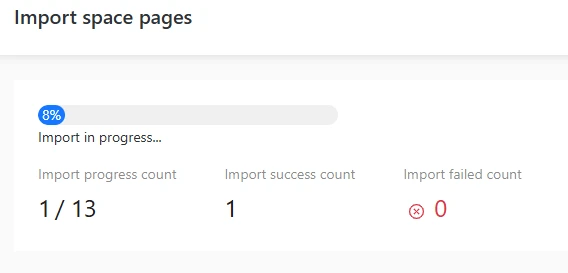
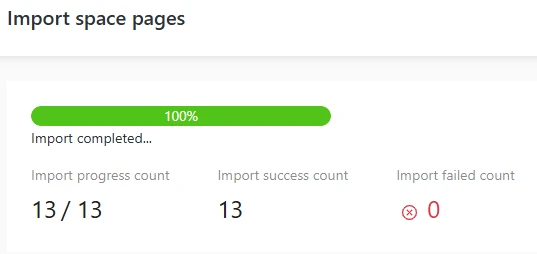
Note: it is not possible to have multiple imports in parallel. All users see the progress view until the current import is complete.
Once the import is complete, the Document Manager will list both Change History content and Comala Document Activity in the Change History Tab of the Document Details view.
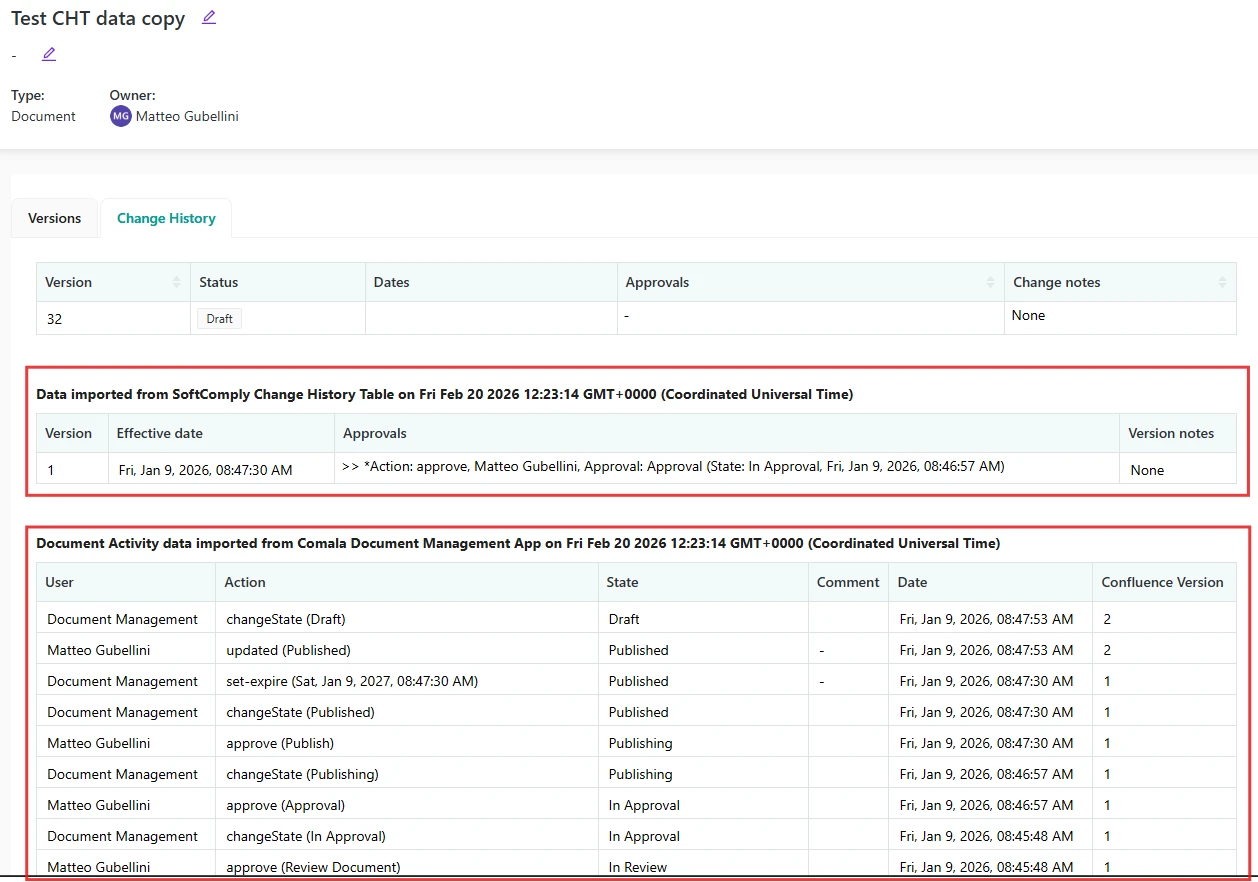
Note: this data is static, meaning that it cannot be modified once imported.
Important notes regarding the import of pages into the DM
Pages to be imported are MOVED, not copied, to maintain the current links. For this reason it is strongly recommended to BACKUP THE SPACE before import.
A maximum of 200 pages can be moved at once. You can import the remaining pages after the previous import has been completed, repeating the process described above. Pages not imported remain in the original space.
Import Errors
There are typically two reasons why the import of certain pages may fail:
A page with the same name existing in the Document Manager. Modify the title of the page to be imported and retry.
The Document Manager App does not have the required permissions to move the page. Ensure that the Document Manager App can “Edit” all pages intended to be imported.
If you are still experiencing problems, use the SoftComply Support page to request assistance: SoftComply Support
Note: currently it is not possible to import data from Published documents. Documents are imported Draft status.
